









💡 Key Takeaways
- Distinguish microphone-position problems from recording-level problems.
- Keep the microphone ready for the beginning and end of each person’s speech.
- Leave recording headroom for louder reactions.
- With two microphones, verify whether your device preserves separate channels or combines them.
The host’s question sounds clear, but the guest’s answer is barely audible. You move the microphone closer, the guest laughs, and the recording suddenly distorts.
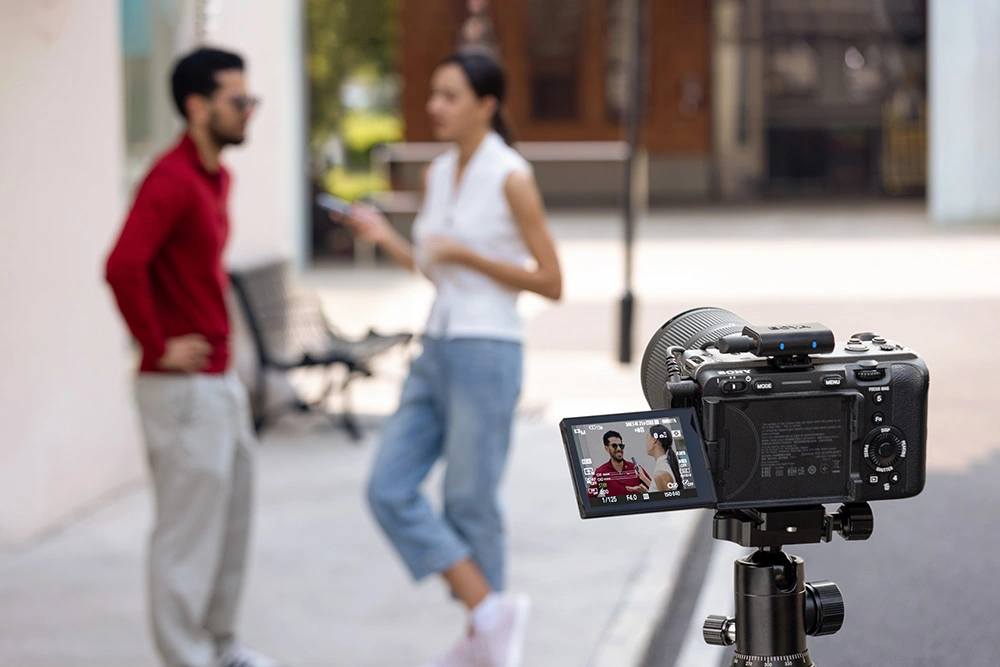
Street interviews combine unfamiliar voices, spontaneous reactions, and movement. Getting more consistent audio means identifying what causes those changes, controlling microphone position, and checking how your equipment records both speakers.
1. Why Do the Host and Guest Sound So Different?
Quiet and Distant Speech
If the guest sounds quieter while traffic becomes more prominent relative to their voice, check microphone distance. The mic may still be beside the host, or the guest may have leaned away.
Increasing gain amplifies the background sound already captured alongside speech. It does not improve the balance between the voice and that background.
Changes That Follow Movement
If the sound changes when someone turns, steps back, or lowers the microphone, position is a likely contributor. A clip-on mic can also sound different when its wearer turns their head, even though the transmitter stays in place.
Notice whether the change follows a visible action. Gradually quieter speech is different from a sudden gap or complete loss of audio.
Distortion During Louder Reactions
When ordinary speech sounds fine but laughter becomes harsh or crackly, part of the recording chain may be overloaded. The setup needs enough headroom—the margin available for louder sounds—to accommodate more than a calm speaking voice.
2. How to Keep Levels More Consistent During the Interview
Coordinate the Microphone with Each Speaker
With a shared handheld mic, the transition between question and answer is a vulnerable moment. Guests may respond before the microphone reaches them.
Give a simple cue before starting: “I’ll bring the mic over when it’s your turn.” Finish your question, move the microphone smoothly, and let the guest begin once it is in position.
Keep it with the guest until the answer is complete. Pulling it back while they deliver the final few words can make the ending noticeably quieter.
If an important phrase is missed, ask for it again while you are still recording.
Respond to Movement Without Chasing Every Gesture
Follow small changes in position with controlled adjustments. Avoid swinging the microphone abruptly whenever the guest moves.
If someone repeatedly turns away, position yourself so they can comfortably address you and the microphone. A friendly reminder about where to speak can help.
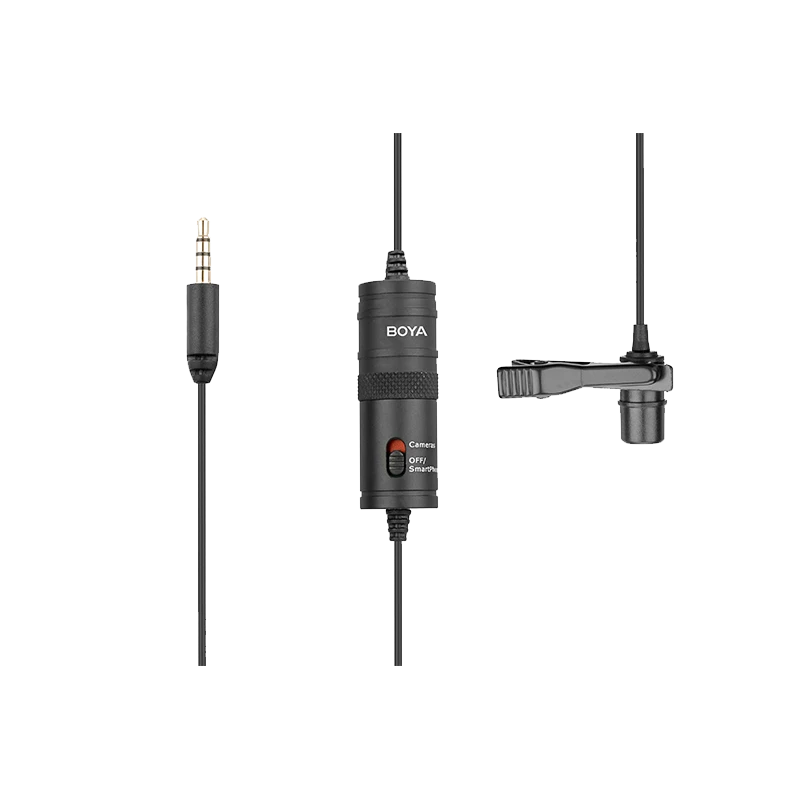
With clip-on microphones, check that the opening remains exposed and clear of loose fabric. Position the mic for the posture the person actually uses during the conversation.
Follow the microphone’s placement guidance as a starting point. One fixed distance will not suit every design, voice, and environment.
Leave Room for Louder Speech
Do not try to make every quiet phrase fill the recording meter. For conventional digital recording, keep peaks below 0 dBFS and leave room for laughter or an emphatic reply.
Where independent controls are available, adjust each input appropriately. With a shared control, accommodate the louder speaker, then improve the quieter speaker’s microphone position before raising the overall level.
Our guide to setting microphone gain correctly explains how gain settings affect recording levels and distortion.
Understand What Automatic Protection Can Do
A limiter helps control peaks at the stage where it operates. A safety channel provides a lower-level version of the audio. These features can help with unexpected reactions, but neither recovers words spoken before the microphone arrives.
They also cannot repair distortion that occurred earlier in the signal chain. Treat automatic protection as support for a properly set recording level, rather than a reason to record close to the limit.

3. Choose and Verify Your Recording Setup
One Shared Mic Captures Both Voices Together
A shared microphone provides one audio source containing whoever speaks near it. Changing the output mode cannot automatically separate the host and guest within that source.
This can work well for a simple exchange, provided the speakers take turns and the microphone follows them.
Two Mics Can Preserve More Control
Giving each person a microphone removes the need to pass one mic back and forth. However, receiving two transmitters does not necessarily mean the final recording keeps them separate.
The receiver may combine both inputs into mono or route them to separate left and right channels. The connected device and recording app must support and retain the selected arrangement. Those channels may be stored within one file, rather than as two separate files.
Our wireless microphone channel modes guide explains the output options.
Separate channels preserve control over each microphone feed, but they do not guarantee isolated voices. Each mic can still pick up the other person, especially when they stand close together or speak simultaneously.
Where BOYA Magic Fits
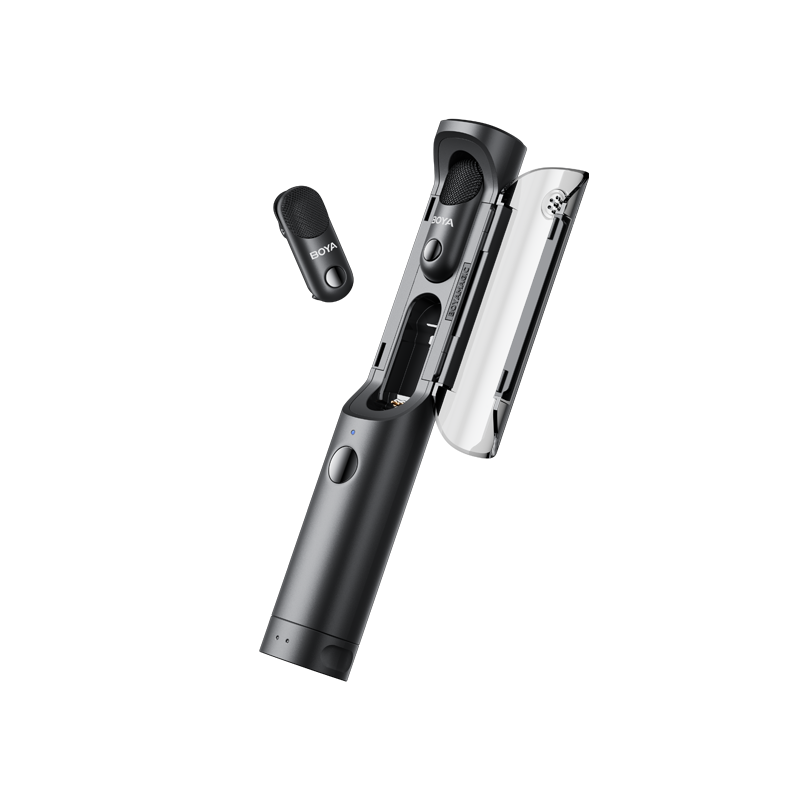
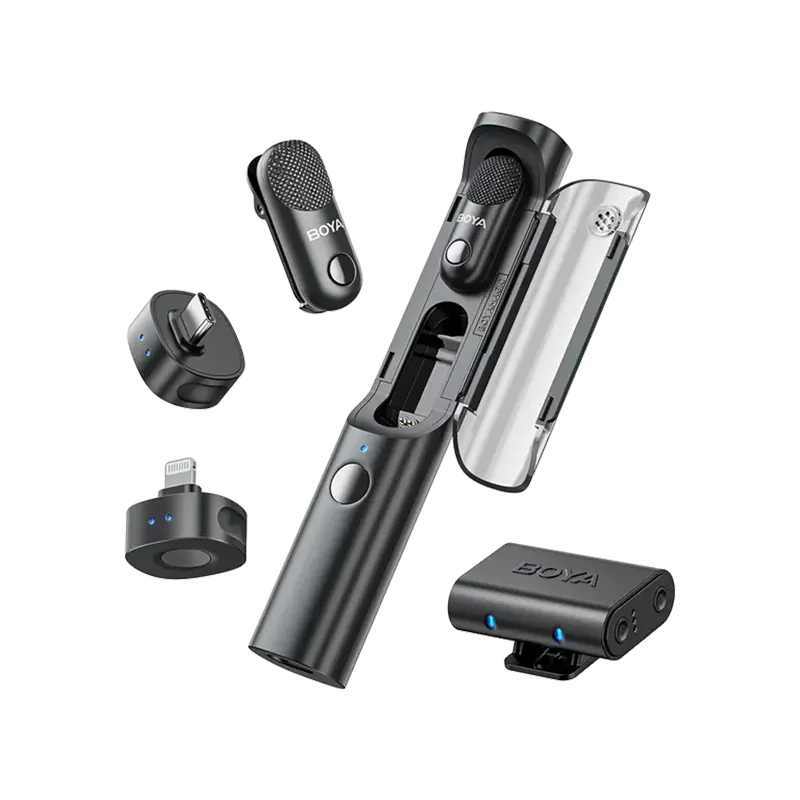
BOYA Magic supports simultaneous clip-on and handheld use when a microphone is installed in the charging case’s top slot. The host can wear one transmitter while using the handheld form for guests, reducing the need to move the guest’s mic back for every question.
Its app-selectable Stereo mode routes the two transmitters to separate output channels, provided the connected device supports stereo input and the recording app preserves those channels.
Magic also offers a limiter and a −12 dB safety channel. Safety Track mode is available only with Mono, so it is a different choice from keeping both speakers on separate channels. Select the mode according to the recording flexibility you need.
Run One Test for Levels and Channels
Use the actual device and app you will film with:
- Have the host and guest speak separately at their intended microphone positions.
- Ask each person to deliver a more animated sentence.
- Listen for clarity and distortion, and check that louder speech leaves headroom.
- If separate channels are needed, inspect or listen to each channel individually.
Some quieter pickup of the other speaker is normal. Check whether the channels contain different microphone feeds or the same combined mix.
For each new guest, use a brief warm-up question to reassess placement and level. Repeat the channel check if you change the output mode, recording device, or app.
Conclusion
Consistent street interview audio starts with understanding why a voice becomes distant, changes level, or distorts. Match the correction to the cause, then verify that your recording setup captures both speakers as intended.
The goal is clear, usable speech throughout the exchange—not identical meter readings for two different voices. For creators who want a clip-on mic for the host and a handheld setup for guests, BOYA Magic offers a practical configuration to consider.
Frequently Asked Questions
Can Noise Cancellation Make a Quiet Guest as Loud as the Host?
Noise cancellation reduces unwanted background sound; it does not replace speaker-level adjustment. Check the guest’s microphone position and recording level first, then assess whether noise processing improves clarity without making the voice sound unnatural.
Why Does the Background Get Louder When Nobody Is Speaking?
Automatic gain control in a microphone, camera, or app may raise the level during pauses, making ambient sound more noticeable. Check which automatic controls are active and compare a short recording with manual levels where available before deciding what to change.