










Wireless microphone disconnections are usually caused by RF interference, physical obstacles, low battery power, incorrect device settings, firmware issues, or operating system power management—not by hardware failure. Before replacing your microphone, identify whether the problem involves the wireless connection itself, audio routing, or device recognition. Once you know which type of disconnect you're experiencing, troubleshooting becomes much faster and more effective.
💡 Key Takeaways
- Most wireless microphone disconnects are caused by environmental or configuration issues rather than hardware failure.
- RF interference, excessive distance, and body blocking are among the most common reasons for unstable wireless performance.
- Some "disconnect" problems are actually audio routing or operating system issues, even though the wireless link remains active.
- Following a structured troubleshooting process is more effective than repeatedly reconnecting devices.
- Proper positioning, fully charged batteries, firmware updates, and pre-recording system checks can prevent most wireless microphone dropouts.
Wireless microphones have become essential tools for content creators, filmmakers, educators, livestreamers, musicians, and business professionals. They eliminate cable clutter and make recording far more flexible—but when a wireless microphone suddenly disconnects or the audio starts cutting in and out, even a simple recording session can become frustrating.
Fortunately, most wireless microphone disconnections are not caused by defective hardware. In many cases, the real issue is related to radio frequency (RF) interference, physical positioning, battery level, device configuration, or software settings. Understanding the difference can save time, prevent unnecessary equipment replacement, and help you restore a stable connection much faster.
This guide explains why wireless microphones disconnect, how to identify the actual cause behind different symptoms, and what you can do to prevent dropouts in future recordings.

Wireless Mic Dropouts: Definition and Root Causes
A wireless microphone “disconnect” is not a single technical failure but a symptom that can originate from different layers of the audio system, including RF transmission, device communication, audio routing, or software configuration.
In real-world usage, users often describe multiple different problems as a “disconnect,” even though the underlying causes are fundamentally different. Understanding this distinction is essential for accurate troubleshooting and faster resolution.
What Does a Wireless Microphone “Disconnect” Actually Mean?
A wireless microphone disconnect refers to any situation where audio transmission, reception, or recording is interrupted—whether or not the wireless RF link is actually lost.
In practice, “disconnect” can occur at several different system layers:
- RF transmission layer: The transmitter and receiver lose wireless communication entirely.
- Audio routing layer: The operating system or app stops using the wireless microphone as the input source.
- Device communication layer: The receiver disconnects from the phone, camera, or computer via USB or adapter.
- Application layer: Recording software fails to capture audio despite correct system connection.
This means a microphone may appear “disconnected” even when the wireless signal is still active and functioning normally.
Common Symptoms and What They Usually Mean
Different disconnect symptoms usually point to different underlying system layers, not a single universal failure.
| What You Notice | What It Usually Means | System Layer |
|---|---|---|
| Signal bars disappear or show no connection | RF transmission loss between transmitter and receiver | Wireless (RF) |
| Signal remains connected but no audio is recorded | Incorrect input selection or audio routing issue | Software / OS |
| Receiver disappears from device list | USB or adapter communication failure | Device connection |
| Microphone works in one app but not another | Application-level input or permission issue | Application |
| Audio cuts when moving or turning body | RF obstruction or body blocking signal path | Wireless (RF) |
This classification is important because it shows that the same “disconnect” symptom can originate from completely different system layers, each requiring a different troubleshooting approach.
Why Do Wireless Microphones Disconnect?
Wireless microphone disconnections occur when one or more parts of the transmission chain are disrupted by environmental, physical, electrical, or software-related factors. Once you understand what a “disconnect” actually represents, the root causes become easier to identify and group into predictable categories:
- RF interference: Competing signals from Wi-Fi, Bluetooth, or other wireless devices in the same frequency environment.
- Distance and physical obstruction: Signal degradation caused by range limits, walls, metal structures, or body blocking.
- Power instability: Low battery levels reducing transmission stability or causing intermittent operation.
- Device configuration issues: Incorrect audio input selection or system-level routing changes.
- Firmware or pairing issues: Version mismatches or corrupted pairing states between transmitter and receiver.
- Operating system power management: USB suspension, sleep modes, or background restrictions affecting device connectivity.
- Hardware degradation: Physical damage or wear affecting antennas, connectors, or internal RF components.
In most real-world cases, wireless microphone instability is caused by a combination of environment and configuration rather than a single point failure.
How to Fix a Wireless Microphone That Keeps Disconnecting
Most wireless microphone stability issues can be resolved through a structured troubleshooting sequence rather than random reconnection attempts. The goal is to isolate whether the issue originates from RF transmission, device communication, or software configuration, then apply the appropriate fix in order of likelihood.
Step 1: Verify Power and Battery Stability
Start by ensuring both transmitter and receiver are fully charged or properly powered. Low or unstable power supply is one of the most common hidden causes of intermittent disconnects.
- Confirm battery level is above minimum operating threshold
- Use original charging accessories where possible
- Avoid recording on borderline low battery conditions
Step 2: Check Line-of-Sight and Physical Positioning
Physical placement has a direct impact on RF stability, especially in 2.4 GHz systems.
- Keep transmitter and receiver within recommended range
- Avoid placing receiver inside bags, cages, or behind metal objects
- Maintain partial or full line-of-sight whenever possible
Step 3: Reduce RF Interference in the Environment
Wireless congestion is a major contributor to instability in modern environments.
- Move away from Wi-Fi routers and access points
- Disable unnecessary Bluetooth devices nearby
- Avoid stacking multiple wireless systems in close proximity
Step 4: Confirm Correct Audio Input Selection
Many “disconnects” are actually caused by incorrect input selection rather than signal loss.
- Check system audio input settings (Windows/macOS/mobile)
- Verify microphone selection in recording apps (Zoom, OBS, etc.)
- Re-select the wireless receiver as default input if needed
Step 5: Restart and Re-Pair the System
If issues persist, resetting the wireless link can clear temporary pairing inconsistencies.
- Power cycle both transmitter and receiver
- Re-establish pairing connection
- Ensure both units are using compatible firmware versions
Step 6: Update Firmware
Firmware updates often include RF optimization, stability improvements, and compatibility fixes.
- Check manufacturer app or official update tool
- Update both transmitter and receiver
- Avoid interrupting firmware installation
Step 7: Test on an Alternative Device
If instability continues, test the system with another camera, phone, or computer.
- Helps isolate whether the issue is device-specific
- Confirms whether USB or OS-level conflicts are involved
This structured approach ensures that troubleshooting progresses from the most common and reversible issues to the least likely hardware-related causes.
How Can You Prevent Wireless Microphone Disconnects?
Preventing wireless microphone disconnects is primarily about controlling environmental variables and maintaining consistent system configuration rather than reacting to failures after they occur.
A stable wireless workflow is achieved through preparation, correct setup practices, and ongoing system maintenance.
Optimize Physical Setup and Line-of-Sight
- Keep transmitter and receiver within manufacturer-recommended range
- Maintain clear or partial line-of-sight whenever possible
- Avoid placing receivers inside enclosed or metallic spaces
- Position receivers at elevated or unobstructed locations in production setups
Minimize RF Interference
- Reduce proximity to Wi-Fi routers and access points during recording
- Turn off unnecessary Bluetooth devices in the immediate area
- Avoid operating multiple wireless systems on closely overlapping channels
- Test RF environments before critical recordings
Maintain Proper Power Management
- Fully charge all wireless components before use
- Avoid recording on low or unstable battery levels
- Use reliable power sources and certified charging accessories
Keep Firmware and System Software Updated
- Regularly update transmitter and receiver firmware
- Ensure mobile apps and control software are up to date
- Re-pair devices after major firmware updates when required
Verify Audio Configuration Before Recording
- Confirm correct input device selection in OS and recording software
- Check microphone permissions on mobile devices
- Perform a short test recording before important sessions
Plan for Redundancy in Critical Workflows
- Carry backup recording options when possible
- Use dual-channel or safety track recording systems if supported
- Monitor audio levels in real time during production

Conclusion
Wireless microphone “disconnects” are rarely caused by a single hardware failure. Instead, they are typically the result of environmental interference, physical positioning, power conditions, or system-level configuration issues. By identifying whether the issue originates from RF transmission, device recognition, or audio routing, users can diagnose and resolve problems far more efficiently. In most cases, stable performance can be achieved through proper setup, correct configuration, and consistent operating practices rather than equipment replacement.
To learn more about the latest news from BOYA, join in our official social media accounts: Facebook, Youtube, Instagram.
Frequently Asked Questions
Why does my wireless microphone keep cutting out?
Most cutting-out issues are caused by RF interference, distance limitations, or body blocking rather than hardware failure. In some cases, audio routing or software configuration issues can also create the appearance of signal loss.
Why does my wireless mic disconnect when I turn around?
This is typically caused by body blocking, where the human body absorbs or blocks high-frequency signals between transmitter and receiver. Repositioning the transmitter or improving line-of-sight usually resolves the issue.
Can Wi-Fi cause wireless microphone dropouts?
Yes. Wi-Fi networks operating in the 2.4 GHz band can contribute to RF congestion and reduce wireless microphone stability in dense environments.
Does low battery affect wireless microphone performance?
Yes. Low battery levels can reduce transmission power and increase susceptibility to interference, leading to instability or dropouts.
Why does my wireless microphone work on one device but not another?
This is usually caused by device-specific audio routing, driver behavior, or permission settings rather than wireless signal failure.
Are UHF wireless microphones more stable than 2.4 GHz systems?
Generally, yes. UHF (Ultra High Frequency) systems are technically more stable for long-range and critical professional events because they operate in a completely different spectrum, away from the heavily congested 2.4 GHz band used by Wi-Fi, Bluetooth, and wireless computer peripherals.
Furthermore, UHF signals have longer wavelengths, giving them superior diffraction capabilities—meaning they can travel around physical obstacles and are less susceptible to "body blocking" (signal absorption by the human body) than 2.4 GHz systems.
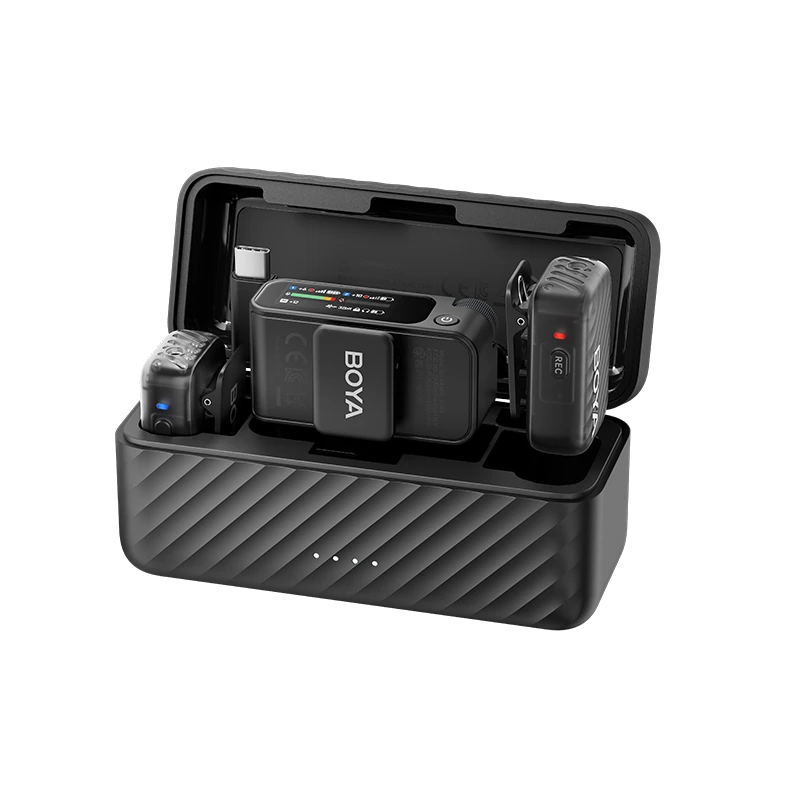
However, 2.4 GHz systems remain the go-to choice for solo content creators and vloggers due to their global license-free operation, compact size, and built-in advanced frequency-hopping technologies. Modern compact setups like the BOYA mini 2 wireless microphone mitigate interference automatically in short-range recording environments.