







Your wireless microphone sounds clear through the receiver's headphones, but when you play back the video, the audio is distorted, too quiet, or missing altogether. What went wrong?
The issue may not be the microphone itself. What you hear through a wireless mic receiver isn't always what your camera, smartphone, or computer actually records. Audio levels, input settings, and signal processing can all affect the sound after it leaves the receiver.
Knowing where to monitor your audio—and what to check before recording—can help you avoid these problems.
💡 Key Takeaways
- Receiver monitoring and recorded audio aren't the same. The receiver lets you hear the wireless microphone signal, while the recording device determines how that signal is captured and saved.
- Audio levels, input selection, and channel settings affect your recording. A clean receiver signal doesn't guarantee a clean recorded file.
- Monitor, check your levels, and test the recording. These three checks help identify problems before an important shoot.
Receiver Audio vs. Recorded Audio: What's the Difference?
A typical wireless microphone system uses a transmitter (TX) to capture sound and send it wirelessly to a receiver (RX). The receiver then delivers the audio to a camera, smartphone, or computer.
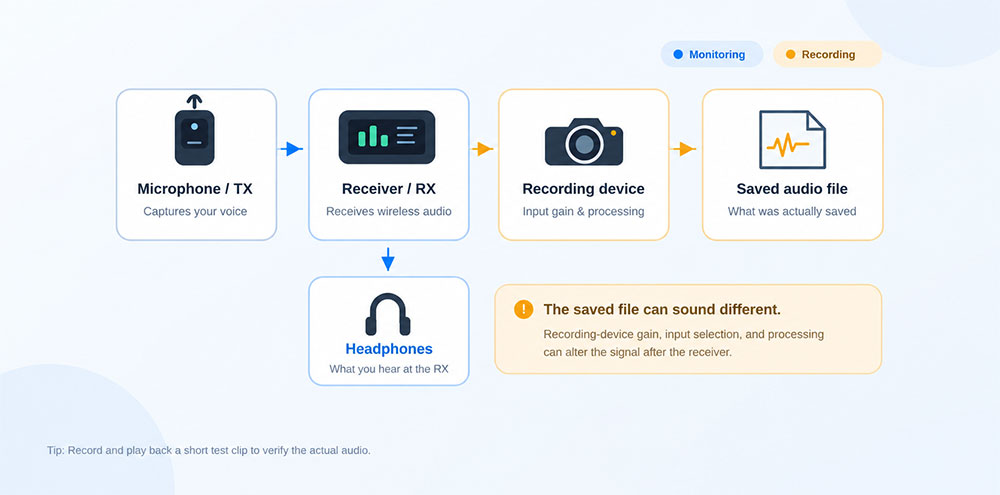
The signal follows this general path:
Microphone → Transmitter (TX) → Receiver (RX) → Recording Device → Audio File
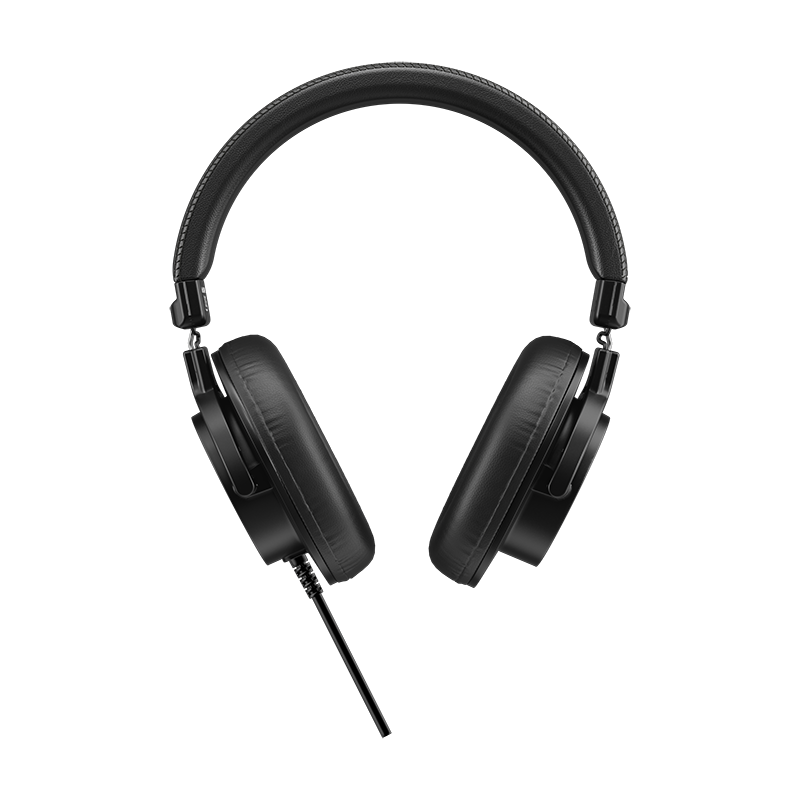
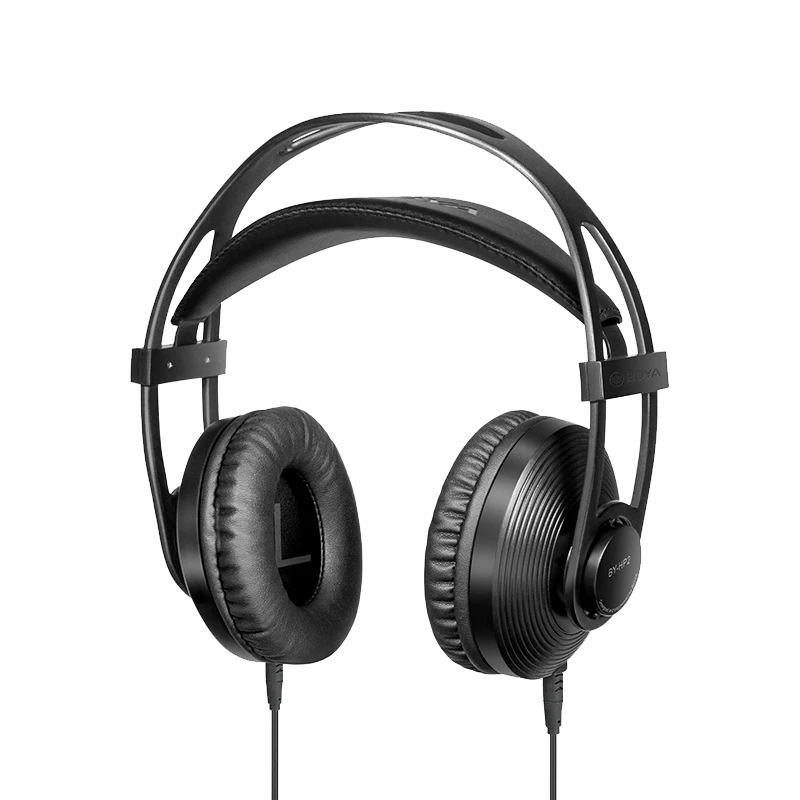
When you plug headphones into a receiver's dedicated monitoring port, you're listening to the audio available at the receiver. This helps you detect microphone-related issues such as clothing rustle, wind noise, or wireless signal interruptions.
However, the recording device may apply its own gain settings, audio processing, or channel configuration before saving the sound.
For example, a receiver might deliver a clean signal while the camera's microphone input is set too high. The resulting recording could be distorted even though the sound coming through the receiver seemed normal.
Receiver Monitoring vs. Camera Monitoring
Monitoring through the camera, when it has a headphone output, lets you hear audio farther along the signal path. This can reveal problems that receiver monitoring alone might miss, such as an overloaded camera input.
Still, live monitoring is not a complete verification of the saved recording. The camera's monitoring path may not reproduce every stage of the recording process.
Playing back an actual test recording is the most direct way to confirm what your device saved.
Why Does Your Wireless Mic Recording Sound Different?
If the receiver sounds fine but the recorded file doesn't, the problem often comes down to three areas: audio levels, input connections, or recording settings.
1. Incorrect Gain Settings Cause Distortion or Low Volume
Gain determines how an audio signal is amplified as it passes through your equipment.
When a wireless receiver sends audio to a camera, both the receiver's output level and the camera's input gain can affect the recorded result.
If the signal overloads the camera's input, it may clip, producing harsh or crackling distortion. If the recorded level is too low, increasing it during editing can make unwanted noise more noticeable.
For conventional digital speech recording, peaks around -12 to -6 dBFS can be a useful starting reference, depending on your device and the subject's volume. Leave enough headroom for louder speech, and avoid hitting 0 dBFS.
Don't judge recording levels by headphone loudness alone. Depending on the wireless microphone system, headphone monitoring volume and receiver output gain may be controlled separately or linked together. Check the relevant gain controls and the recording device's audio meters.
For a more detailed explanation of gain adjustment and distortion prevention, see our guide to setting microphone gain correctly.
2. The Recording Device Is Using the Wrong Audio Input
Your microphone can be connected and transmitting correctly while your recording device captures audio from another source.
This commonly occurs when a smartphone app or computer recording program continues using its built-in microphone instead of the external wireless receiver.
As a result, the recording may sound distant or echoey, despite the clear audio you hear through the receiver.
A loose cable, incompatible adapter, or incorrect audio input connection can also prevent the intended signal from reaching your recording device.
Check the physical connection and confirm that the correct microphone input is active in your recording settings.
3. Audio Processing or Channel Settings Change the Sound
Recording software may apply automatic gain control, noise suppression, or other processing to the incoming microphone signal. These adjustments can change the recorded volume or sound character.
Channel configuration is another consideration when using two wireless transmitters.
In mono mode, the two microphone signals are typically combined. In stereo mode, they can be assigned to separate left and right channels, allowing you to edit each speaker independently.
If your playback software is only reproducing one side of a stereo recording, one speaker may appear to be missing.
Before filming with two microphones, confirm which channel mode you're using and whether your recording or editing software is handling both channels correctly. For more details on selecting and configuring these options, see our guide to wireless microphone channel modes.
How to Monitor a Wireless Microphone Before Recording
You don't need an elaborate audio setup to avoid most recording problems. A few checks before filming can help you identify issues at different points in the signal chain.
Step 1: Connect the Microphone and Confirm the Audio Input
Power on the transmitter and receiver, then check that they're paired and receiving a stable signal.
Connect the receiver to your recording device using a compatible cable or adapter. For cameras, this is commonly a 3.5 mm TRS audio connection. Smartphones and computers may use USB-C, Lightning, or another supported audio interface.
On a computer, select the wireless receiver in your recording software. On a smartphone, verify that your recording app recognizes the external microphone.
Step 2: Listen Through the Receiver
If your receiver has a headphone monitoring port, connect compatible headphones and listen while your subject speaks.
Pay attention to microphone placement, clothing noise, wind, and sudden changes in volume. If you're filming outdoors, test the microphone with the subject moving naturally.
This check helps you evaluate the sound arriving at the receiver before it reaches the recording device.
Step 3: Check the Recording Device's Audio Levels
Watch the audio meters on your camera or recording application, if available. The meters should respond when your subject speaks and remain below the clipping point.
Adjust the appropriate receiver output or recording-device input gain if the signal is too high or too low.
If your camera offers a headphone output, use it to listen to the audio reaching the camera. For smartphones or computers, live monitoring availability depends on the recording application, and software monitoring may introduce some delay.
Step 4: Record and Review a Short Test Clip
Record approximately 10 seconds of audio using the same setup you plan to use for the actual shoot.
Have your subject speak at both normal and louder volumes. If you're using two transmitters, test each one separately.
Play back the saved file and check its volume, clarity, and channel balance. This is especially useful before interviews, live presentations, or shoots where retakes aren't possible.
How BOYAMIC 2 Helps with Monitoring and Recording
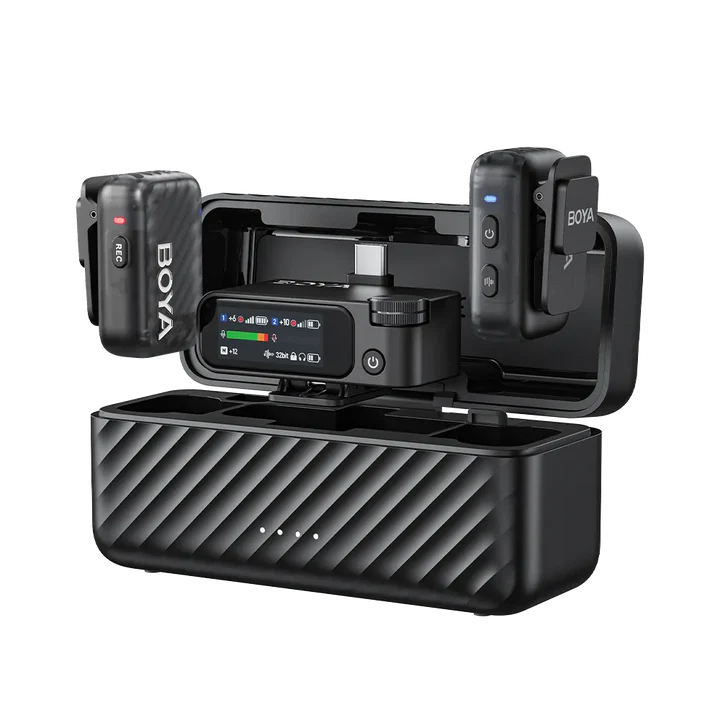
For creators who need more control over their wireless audio, the BOYAMIC 2 wireless microphone combines receiver monitoring, adjustable gain, and additional recording protection.
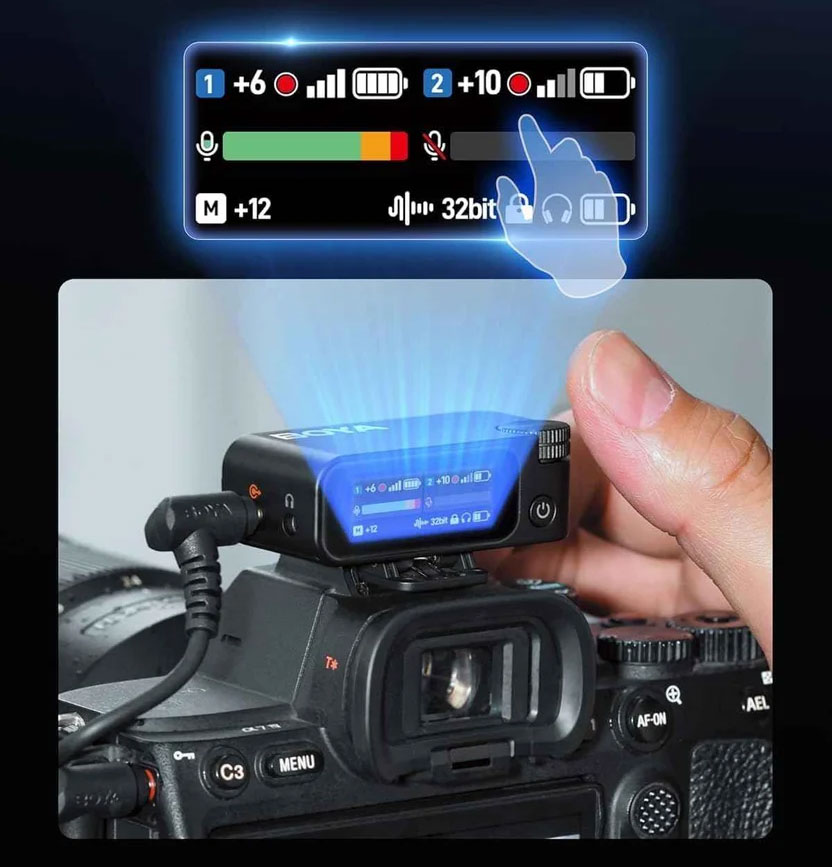
Its receiver features a dedicated 3.5 mm headphone monitoring port, allowing users to listen to the transmitted audio in real time. The touchscreen displays information such as audio levels, transmitter status, and receiver settings.
When connecting to a camera, BOYAMIC 2 also provides Camera Presets for supported camera models. Users can select their camera model to view recommended gain settings on the receiver, helping them establish a suitable starting point before recording.
On BOYAMIC 2, receiver output gain and monitoring volume are linked, so adjusting the receiver's output gain can change both the level sent to the recording device and what you hear through the receiver.
Safety Track vs. 32-Bit Float Onboard Recording
Beyond monitoring, BOYAMIC 2 offers two distinct features that can help reduce recording risks.
Safety Track: BOYAMIC 2 supports a microphone safety track that outputs the right channel 12 dB lower than the left. The quieter channel provides additional headroom if unexpected volume peaks affect the main channel. The channels need to be handled appropriately in post-production, and this feature cannot repair audio that was already distorted earlier in the signal path.
32-bit float onboard recording: With onboard recording, BOYAMIC 2 can save audio directly to the transmitter's internal storage, independently of the camera's recorded file. When enabled, this provides an additional copy of the audio that may remain usable if the wireless connection or external recording fails.
The 32-bit float format provides greater flexibility for adjusting recorded levels in post-production. However, it applies to the transmitter's onboard recording, not automatically to the audio file saved by your camera.
These features serve different purposes: monitoring helps you detect problems during recording, Safety Track provides a lower-level output channel, and onboard recording creates a separate audio file. Using them together can provide additional protection without replacing proper audio setup.
Common Wireless Microphone Monitoring Problems and Fixes
If something sounds wrong, the symptoms can help you determine which part of the setup needs attention.
| Problem | Possible Cause | What to Check |
|---|---|---|
| Clean receiver audio but distorted video recording | Receiver output or camera input level is too high | Check gain settings and camera audio meters |
| Recorded audio is much quieter than expected | Recording input gain is too low | Adjust recording levels and test again |
| Voice sounds distant or echoey | Built-in microphone is being used | Confirm the external microphone is selected |
| Only one person is audible in a two-mic recording | Stereo channel or playback settings | Inspect left and right channels |
| Receiver has audio but the recording is silent | Incorrect connection, input routing, or recording configuration | Check the cable, selected input, and saved test file |
If multiple issues occur together, start with a basic setup using one transmitter and one recording device. Once that works, reconnect additional equipment one component at a time.
Conclusion
Reliable wireless microphone audio depends on checking the entire recording path, not just the signal you hear through the receiver.
Before filming, listen for problems at the microphone, verify the recording device's levels and input settings, and review a short saved clip. Together, these checks help ensure your final recording sounds the way you intended.
FAQ
Can I monitor my wireless microphone if my camera has no headphone jack?
Yes, provided your wireless microphone receiver has a compatible headphone monitoring output. You can listen through the receiver, use the camera's audio meters if available, and play back a test recording to check the captured audio.
Does increasing headphone volume make my recorded audio louder?
Not necessarily. This depends on the microphone system and its gain controls. Some devices separate headphone volume from recording output levels, while systems such as BOYAMIC 2 link receiver output gain with monitoring volume. Refer to your device's settings rather than using headphone loudness as a recording-level measurement.
Can I monitor a wireless microphone through my smartphone?
Yes, if your microphone system and recording application support audio monitoring. Some apps provide live monitoring or audio level meters, while others require you to play back a recording. Compatibility varies by phone, receiver, adapter, and app.
Does 32-bit float recording prevent camera audio clipping?
Not automatically. On systems such as BOYAMIC 2, 32-bit float applies to the transmitter's onboard recording. The connected camera still uses its own recording format and input gain settings, which must be configured correctly to avoid clipping.