









💡 Key Takeaways
- Most wireless mic issues come from setup errors, not hardware failure.
- RF interference and incorrect gain staging are the top two root causes of poor audio.
- Proper transmitter placement and antenna awareness significantly improve stability.
- Battery management and firmware updates are often overlooked but critical.
- Understanding mic type (lavalier, handheld, plug-on) prevents compatibility mistakes.
Wireless microphones are widely used in content creation, filmmaking, live streaming, and business communication, but many beginners still experience unstable audio, dropouts, or poor sound quality.
In most cases, the problem is not the equipment itself but incorrect setup, misunderstanding of RF behavior, or improper gain and environment control. This article breaks down the most common mistakes beginners make when using wireless microphones—and how to avoid them in real-world scenarios.
1. Why Is Incorrect Gain Staging One of the Biggest Mistakes?
Incorrect gain staging is the failure to properly balance input sensitivity across the transmitter, receiver, and camera or recorder. This is the primary reason why amateur audio either sounds full of static background hiss (gain too low) or completely distorted, crackly, and "clipped" (gain too high).
Typical beginner errors include:
- Setting transmitter gain too high: Causes clipping and digital distortion at the source.
- Setting receiver output too high: Overloads the camera's budget preamps, ruining clean signals.
- Setting everything too low: Forces you to boost the volume in post-production, raising a noisy, weak signal floor.
The Correct Approach
Gain should be distributed across the entire signal chain, not maximized at a single point. Learning how to set microphone gain correctly prevents you from relying on automatic workarounds or blowing out your tracks in high-volume environments.
A practical professional workflow:
- Set transmitter gain first for clean, robust voice capture without peaking.
- Adjust receiver output to match your camera’s line/mic input level (usually keeping camera preamps turned down low).
- Monitor peaks using headphones or visual level meters.
Pro Tip: Modern systems from BOYA frequently integrate Auto-Gain controls or high-dynamic-range tracking, acting as a built-in safety net for creators who cannot manually adjust levels mid-shoot.

2. Why Does RF Interference Catch Beginners Off Guard?
RF (Radio Frequency) interference is unwanted radio frequency energy that disrupts wireless transmission stability. For beginners, this usually results in unexpected clicking sounds, pops, or complete audio dropouts during field recordings.
Beginners often assume interference only comes from other microphones, but modern environments are far more complex. Common interference sources include:
- Wi-Fi routers (heavy 2.4 GHz bandwidth congestion)
- Smartphones and active personal hotspots
- LED walls and electronic stage lighting controllers
- Unshielded USB 3.0 ports and hubs
- Crowded event venues with hundreds of active mobile devices
Beginners usually test their gear in clean, empty studios, then deploy in RF-heavy locations where performance suddenly degrades. Professional wireless systems mitigate this by utilizing smart frequency hopping and adaptive channel selection to scan and lock onto the cleanest available frequencies automatically.
3. Why Is Poor Transmitter Placement a Hidden Problem?
Poor transmitter placement is the incorrect or obstructed positioning of the wireless mic bodypack, clip-on, or plug-on transmitter. This error often leads to "body-blocking," where the audio drops out the moment the speaker turns their back to the camera.
Wireless microphones rely heavily on antenna exposure, even in compact digital clip-on systems. Common placement mistakes include:
- Body-blocking the internal antenna with hands, heavy winter clothing, or long hair.
- Placing the transmitter inside metal-lined pockets, tight jeans, or gear cases.
- Mounting lavalier cables in tangled configurations that accidentally mimic detuned antennas.
- Positioning plug-on transmitters too close to heavy, unshielded camera rigs.
A Simple Rule: Maintain Line-of-Sight (LOS) whenever possible. Keep the transmitter visible, ventilated, and unobstructed to give the radio signals a clear path to the receiver.
4. Why Do Battery Mistakes Cause Sudden Audio Failures?
Battery-related mistakes are one of the most preventable yet common causes of wireless microphone failure. Beginners often assume that if a device powers on, it will output a stable signal, failing to realize that low-voltage batteries can cause RF range to shrink drastically before the unit actually dies.
Typical power errors:
- Not fully charging both units before a shoot.
- Ignoring transmitter vs. receiver battery imbalance (transmitters usually drain faster due to RF output power).
- Using aging or low-quality rechargeable batteries that suffer from rapid voltage drops.
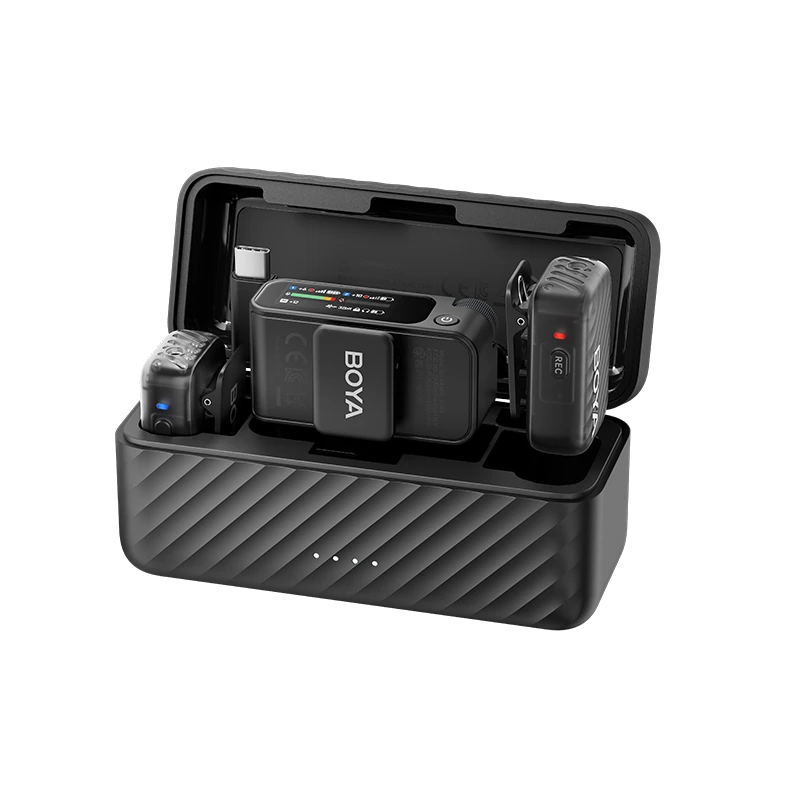
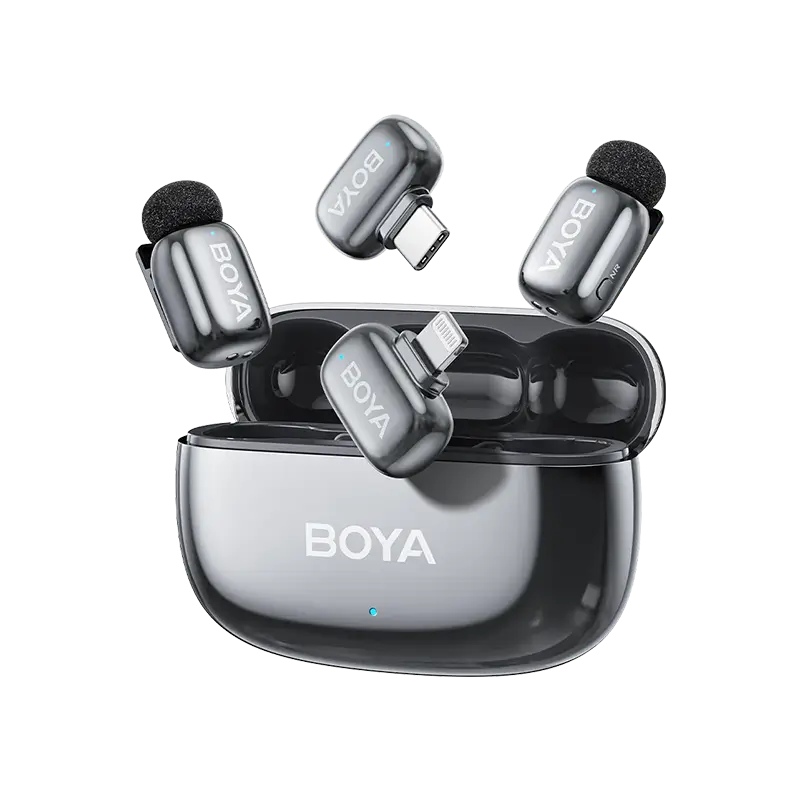
Best Practice: Always start with a 100% charge on both units. Use matched charging cases—like the integrated charging vaults provided with systems like the BOYA mini 2—to ensure your entire ecosystem is topped up simultaneously. Always monitor battery indicators during long production sessions.
5. Why Is Device Compatibility Often Overlooked?
Device compatibility issues occur when wireless microphone systems are not properly matched to recording devices, connectors, or input impedance types. The result is usually a frustrating "no audio recorded" scenario or an extremely low, muffled track.
This is especially common in modern hybrid workflows switching between cameras and smartphones. Examples of compatibility mistakes include:
- TRS vs. TRRS confusion: Using a 3-pole TRS cable meant for cameras on a 4-pole TRRS smartphone headphone jack.
- Mic-level vs. Line-level mismatch: Sending a hot line signal into a sensitive mic port, causing instant distortion.
- Digital Support: Expecting a USB-C digital mic to work seamlessly without checking if the smartphone or camera firmware natively supports external USB audio.
Understanding these hardware limitations helps creators troubleshoot why wireless microphones fail on some devices before a critical shoot begins. To solve this friction, modern manufacturers like BOYA design multi-mode outputs, packing Lightning, Type-C, and 3.5mm TRS connections into a single interchangeable setup to eliminate connector guesswork for creators.
6. Why Does Firmware and Software Neglect Matter?
Firmware neglect is the failure to update or configure wireless microphone system software. Modern wireless systems are software-driven RF devices, not just basic analog hardware. Running outdated software can lead to sudden pairing failures or reduced compatibility with newer smartphones.
Common beginner oversights:
- Never updating the firmware after unboxing the product.
- Ignoring companion app-based configuration tools that adjust internal parameters.
- Using outdated local channel maps or profiles.
Regular updates ensure your system benefits from ongoing RF protocol optimizations, improved battery efficiency, and expanded device compatibility.
7. Why Is Environmental Testing Important for Wireless Mics?
Environmental testing is the process of evaluating wireless performance in real-world conditions before production use. Beginners often test only in controlled environments—such as home studios—and get caught off guard by the unpredictable layout of a live venue.
What gets missed:
- High-density RF traffic differences during actual event times versus setup times.
- Physical obstacles like concrete walls, pillars, or metal staging in event venues.
- Weather impact (such as high humidity) on outdoor range.
- Human body signal absorption in high-movement scenarios.
Professional Workflow: Always perform a 2–3 minute "stress test" (a walking range check) in the actual recording environment with your talent before hitting the record button.

Quick Reference: Wireless Mic Mistakes vs. Solutions
To help you troubleshoot your audio at a glance, use this quick breakdown of common mistakes, their acoustic symptoms, and how to fix them instantly.
| Beginner Mistake | What You Hear / Experience | How to Fix It (Best Practice) |
|---|---|---|
| Incorrect Gain Staging | Hissing white noise or clipped, distorted voices. | Set transmitter gain first, then match receiver output to camera input level. |
| Antenna Blocking / Poor Placement | Sudden audio dropouts when the talent turns around. | Maintain strict Line-of-Sight (LOS); keep transmitters unobstructed by bodies or metal. |
| 2.4 GHz RF Congestion | Intermittent clicks, pops, or short audio gaps. | Avoid placing receivers directly near active Wi-Fi routers or heavy USB 3.0 hubs. |
| TRS / TRRS Mismatch | No audio recorded at all, or phone uses its internal mic. | Use TRS (3-ring) for cameras; use TRRS (4-ring) or digital Type-C/Lightning for mobile. |
| Skipping Headphone Monitoring | Discovering ruined, unusable audio after the shoot is over. | Always plug headphones into the receiver or camera to monitor audio quality in real-time. |
How Can Beginners Avoid These Mistakes Systematically?
Avoiding beginner mistakes requires a structured, repeatable checklist rather than ad-hoc troubleshooting when things go wrong. Before your next shoot, run through this quick production routine:
- Fully charge all transmitters, receivers, and charging cases.
- Confirm correct gain staging across your entire physical hardware chain.
- Scan the local RF environment and select a clean channel before hitting record.
- Check transmitter placement to guarantee clear line-of-sight to the receiver.
- Verify device compatibility and ensure cables are plugged into the correct input ports.
- Run a short environmental stress test by having your talent walk the space.
Conclusion
Wireless microphones are highly reliable tools when used correctly, but the vast majority of audio failures stem from predictable user-side configuration errors. Once beginners understand the basics of RF behavior, proper gain structures, and environmental influences, their audio quality transitions from amateur to highly stable and professional.
For modern wireless ecosystems, the ultimate goal is not just "getting a signal," but maintaining consistent, crystal-clear audio across every real-world production condition.
To learn more about the latest news from BOYA, join in our official social media accounts: Facebook, Youtube, Instagram.
Frequently Asked Questions (FAQ)
Why does my wireless microphone sound static or hissy?
A static or hissing sound is usually caused by incorrect gain staging. If your transmitter or receiver output is set too low, you are forced to crank up your camera or recorder's internal preamps, which raises the noise floor. To fix this, increase the microphone's internal gain and lower your camera's audio input level.
How far can a wireless microphone actually go?
While many digital 2.4 GHz systems claim a range of up to 100 or 200 meters, this is measured in ideal, open-space environments with strict Line-of-Sight (LOS). Indoors, due to concrete walls, reflections, and heavy Wi-Fi congestion, the reliable working range is typically much shorter. Always keep a clear path between the transmitter and receiver.
What is the difference between TRS and TRRS cables for microphones?
TRS cables (3-pole, indicated by two black rings) are designed for DSLRs, mirrorless cameras, and audio recorders. TRRS cables (4-pole, indicated by three black rings) are required for smartphones and laptops with analog headphone jacks. Using the wrong cable type will result in no audio being recorded.
Can Wi-Fi routers interfere with my wireless microphone?
Yes. Most modern compact wireless microphones operate on the 2.4 GHz frequency band, which is the same frequency used by standard Wi-Fi routers, Bluetooth devices, and smart home tech. Operating your wireless mic directly next to a powerful Wi-Fi router or heavy USB 3.0 hub can cause audio clicking, popping, or signal dropouts.
Why does my audio drop out when the presenter turns around?
This is known as "body-blocking." The human body is mostly water, which highly absorbs radio frequencies (especially 2.4 GHz and UHF). If the transmitter is clipped to the front of a person and they turn around, their body blocks the direct line-of-sight to the receiver, causing a sudden signal drop. Keep receivers mounted high to maintain a better line.